
Multiplayer User Guide
Table of Contents
Overview
Multiplayer is the online play experience within AI Companion™. It allows you to play Mahjong online with friends while receiving real-time AI discard guidance throughout the game.
Create a private room, invite your friends, and start a game in just a few steps. If fewer than four people join, AI bots automatically fill the remaining seats so you can begin playing without waiting for additional players.
Multiplayer helps you:
- Play live Mahjong with friends.
- Practice with AI Coach guidance during a real game.
- Create and join private game rooms quickly.
- Play with one to four human players.
- Automatically fill empty seats with AI bots.
Whether you’re practicing with friends or introducing new players to Mahjong, Multiplayer provides a complete online Mahjong experience with built-in coaching.
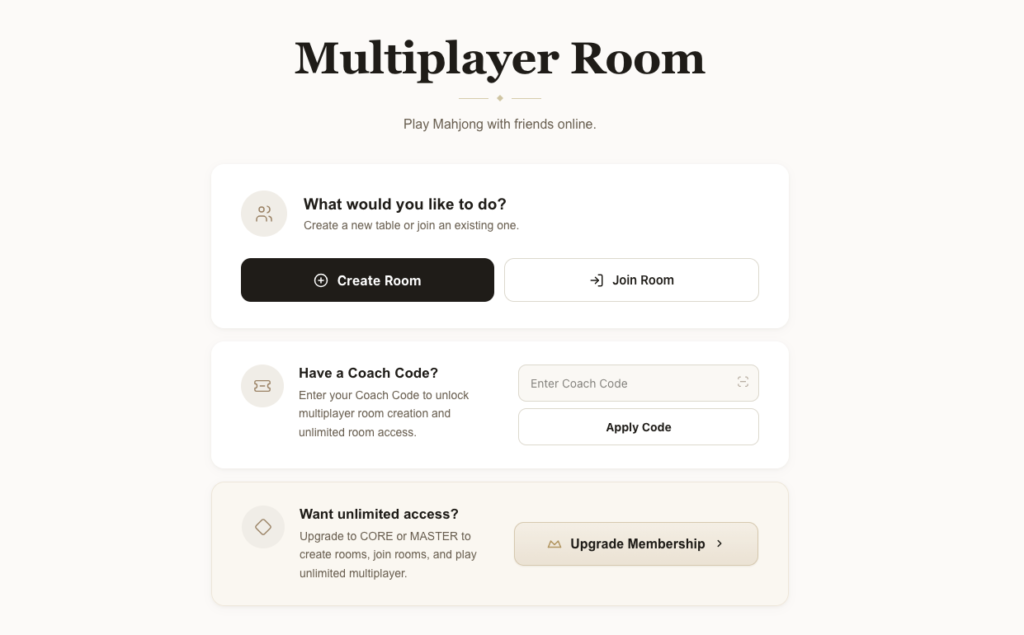
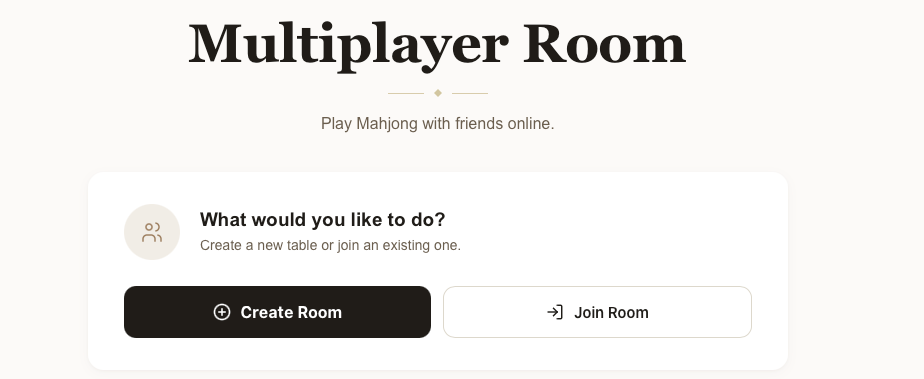
Multiplayer Room home screen.
Before You Start
Before using Multiplayer, make sure you have:
- A HeyMahjong account.
- Access to AI Companion™.
- A stable internet connection.
- A desktop, laptop, or tablet for the best experience. Mobile devices are not currently supported.
Depending on your membership or access code, you may have limited or unlimited Multiplayer access.
Free users may currently be limited to one Multiplayer game (session) per rolling 24-hour period.
Before You Begin
Before creating your first room, it’s helpful to understand how Multiplayer works.
- Every Multiplayer game begins in a private room created by the host.
- Players join using either the Room Link or the Room Code.
- Once everyone has joined, the host starts the game.
- If fewer than four players are present, AI bots automatically fill the remaining seats so the game can begin.
Creating a Room
Step 1. Go to Multiplayer
Go to Multiplayer on this page.
Step 2. Create a Room
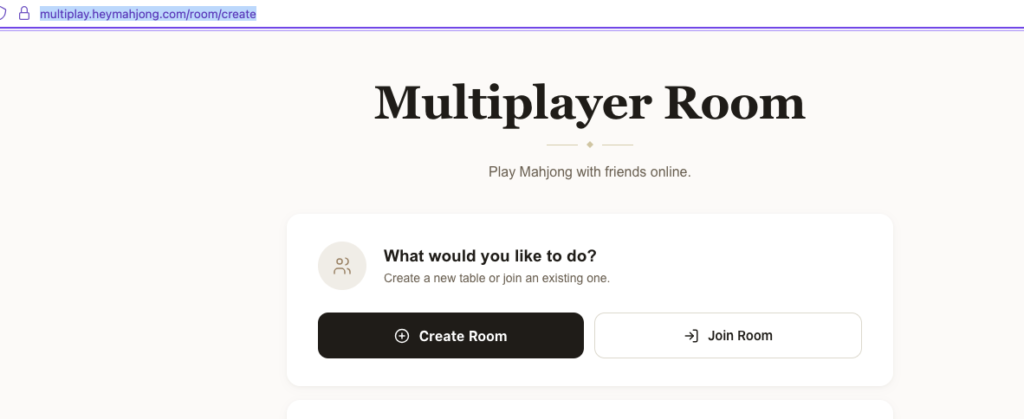
On the Multiplayer Room screen, select Create Room.
A private room is created automatically.
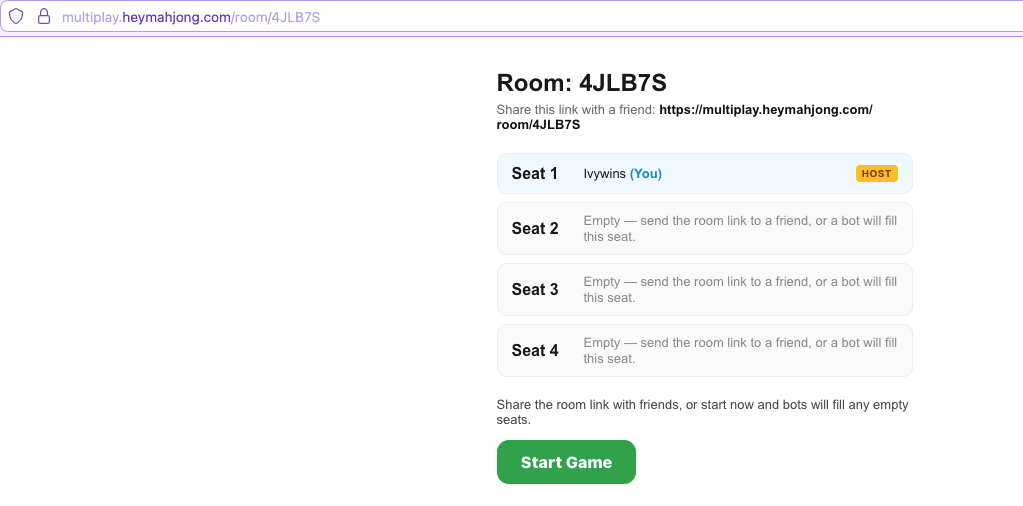
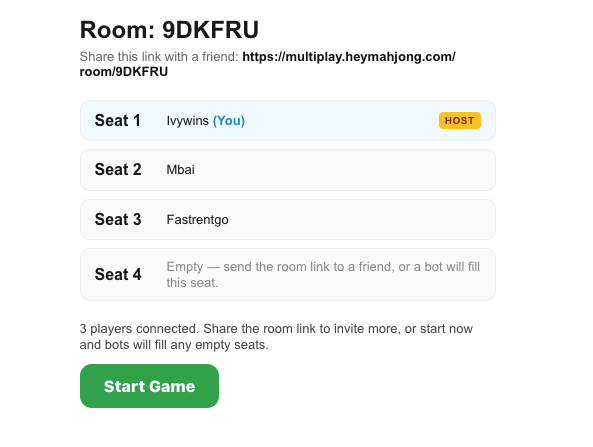
You are seated first and are identified with a HOST badge.
Step 3. Wait for the Room Lobby
Once the room has been created, the room lobby opens automatically.
The lobby displays:
- Room Link
- Room Code
- Connected players
- Empty seats
- Start Game button (Host only)
Sharing the Room Link
To invite friends to your room:
- Locate the section labeled Share this link with a friend (see the screenshot above).
- Copy the Room Link.
- Send the link to your friends using your preferred messaging app or email.
- Ask them to open the link and join the room.
The Room Link ends with /room/ followed by a unique room code.
Joining a Room
There are two ways to join a Multiplayer room.
Join From a Room Link
- Open the Room Link shared by the host.
- Sign in if prompted.
- Select Join Game if the lobby asks you to join.
- Wait for the host to start the game.
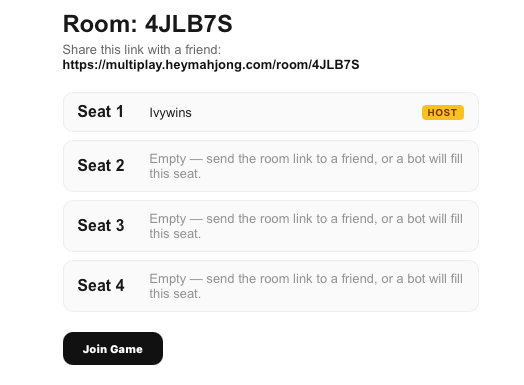
Join With a Room Code
- Open Multiplayer.
- Select Join Room.
- Enter the Room Code.
- Select Join.
Room Codes consist of letters and numbers.
Join Room form showing the Room Code field and Join button.
Understanding the Room Code
The Room Code is the short code contained within the Room Link.
Use the Room Code only on the Join Room screen.
Understanding the Waiting Room
Before the game begins, the room lobby displays:
- Connected players
- Empty seats
- Room Link
- Room Code
- HOST badge
- Start Game button (Host only)
Empty seats do not prevent the game from starting.
When the host selects Start Game, AI bots automatically fill any remaining empty seats.
Starting a Game
Only the room host can start the game.
To begin:
- Verify that everyone who wants to play has joined the room.
- Select Start Game.
The game begins immediately.
If some seats are empty, AI bots automatically fill those seats.
Playing With AI Bots
Multiplayer supports one to four human players.
If fewer than four people are present when the game starts, AI bots automatically occupy the remaining seats.
AI bots help keep the game moving by:
- Filling empty seats.
- Taking turns automatically.
- Allowing games to begin without waiting for four players.
Playing a Turn
During the game, the header displays whose turn it is.
When it is your turn, the game displays:
Your turn — discard a tile
To play:
- Review your hand.
- Select one tile to discard.
- Wait while the next player or AI bot takes their turn.
The game automatically continues until your next turn.
Responding to Calls
If another player discards a tile you can claim, AI Companion™ displays:
Call available — choose CHI, PONG, KONG, HU, or PASS.
Available actions may include:
CHI
Claim the discarded tile to complete a sequence.
PONG
Claim the discarded tile to complete three matching tiles.
KONG
Claim the discarded tile to complete four matching tiles.
HU
Claim the discarded tile to complete your winning hand.
PASS
Choose not to claim the discarded tile.
To respond:
- Review the available actions.
- Select the action you want.
- Select PASS if you do not want to claim the tile.
The game continues automatically after your selection.
AI Discard Guidance
Multiplayer includes the same AI coaching available in AI Coach Pro.
After every discard or call decision, the Coach Feedback panel evaluates your play.
Feedback may include:
- Good
- Acceptable
- Risky
The Coach Feedback panel may also explain why the decision mattered and suggest stronger discard options.
When available, select Why? to view a more detailed explanation.
Every player receives AI guidance during the game, making Multiplayer both a playing and learning experience.
Timer
Multiplayer includes a timer to help keep games moving smoothly.
If the timer expires:
- A call opportunity is automatically passed.
- During your discard turn, the most recently drawn tile is automatically discarded.
While waiting, you may see messages such as:
- Bot is thinking…
- Another player’s turn.
- Waiting for call decision…
Host Controls
The room host is responsible for managing the Multiplayer session.
The host can:
- Invite players by sharing the Room Link.
- Start the game using Start Game.
- Start another session after the game ends using Start Next Session.
Only the host can start the current game or begin the next session.
Room Expiration
Waiting rooms may expire after being inactive for an extended period.
If a room expires, players may receive a message indicating that the room no longer exists or has expired.
If this happens:
- Create a new room.
- Share the new Room Link or Room Code with your friends.
- Ask everyone to join the new room.
Leaving a Room
After a Multiplayer session ends, select Leave Room to exit the completed session.
You will return to the Multiplayer home screen.
The current version does not display a separate Leave Room button while a game is actively in progress.
Starting Another Multiplayer Session
When a Multiplayer game ends, the host will see:
Start Next Session
To begin another game:
- The host selects Start Next Session.
- A new Multiplayer session is created automatically.
- Other players remain in the room and wait for the next game to begin.
Non-host players will see:
Waiting for host to start next session…
Tips
- Share the Room Link with all players before starting the game.
- Verify that everyone has joined before selecting Start Game.
- Don’t worry if you have fewer than four players. AI bots automatically fill empty seats.
- Review the AI Coach feedback after every discard to improve your Mahjong strategy.
- If you’re unsure about a call, compare the available CHI, PONG, KONG, HU, and PASS options with your current hand before making a decision.
- Play regularly with friends to improve together and build confidence.
Troubleshooting
I cannot create a room.
Creating rooms may require eligible Multiplayer access.
If you see a membership or access message, upgrade your membership or enter a valid Coach Code if one has been provided.
I cannot join a room.
Check that:
- The Room Code is correct.
- The room is not full.
- The game has not already started.
- The room has not expired.
- You are signed in.
The room is full.
Each room supports four players.
Ask the host to create a new room if additional players would like to join.
The game already started.
Players cannot join a room after the game has started.
Wait until the current session ends or ask the host to create a new room.
I used my free Multiplayer game.
Free users may currently play one Multiplayer game every rolling 24 hours.
To continue playing:
- Wait until your access resets.
- Upgrade your membership.
- Enter a valid Coach Code if one has been provided.
A bot played for someone.
AI bots fill empty seats and may also take over when necessary to keep the game moving.
I do not see the Start Game button.
Only the room host can see and use the Start Game button.
If you are not the host, wait for the host to begin the game.
Frequently Asked Questions
Can I play with fewer than four people?
Yes. You can start a game with one to four human players. AI bots automatically fill any remaining seats.
Can I invite friends after creating a room?
Yes. Share the Room Link or Room Code before the game starts.
Can someone join after the game starts?
No. Once the game has started, additional players cannot join the current session.
What is a Room Code?
The Room Code is the short code used to join a room from the Join Room screen.
What happens if I do not act before the timer ends?
Multiplayer applies a default action. It may automatically pass a call opportunity or discard the most recently drawn tile.
Why did a bot play at my table?
AI bots fill empty seats and may also act when necessary to keep the game moving.
Who can start the next session?
Only the room host can select Start Next Session.
Need More Help?
Visit the AI Companion™ section of the Help Center or contact HeyMahjong Support if you need additional assistance.